Free Google Review QR Code Generator: Make a Poster Customers Actually Scan (2026)

By the Amica Solutions Team · Published 19 November 2026 · Google facts checked 19 November 2026 against Google’s own Help pages. Amica Solutions builds Amica Directory and these free tools, so the screenshots are from our own tools and our own listing.

A Google review QR code opens your business’s review form in one scan. You can make the code from your Google Business Profile on a computer, or make the code and a printable A4 poster in English and Hindi free with Amica Directory’s review QR poster tool. Place it where customers pay or wait, ask every customer, and never offer a reward for a review.

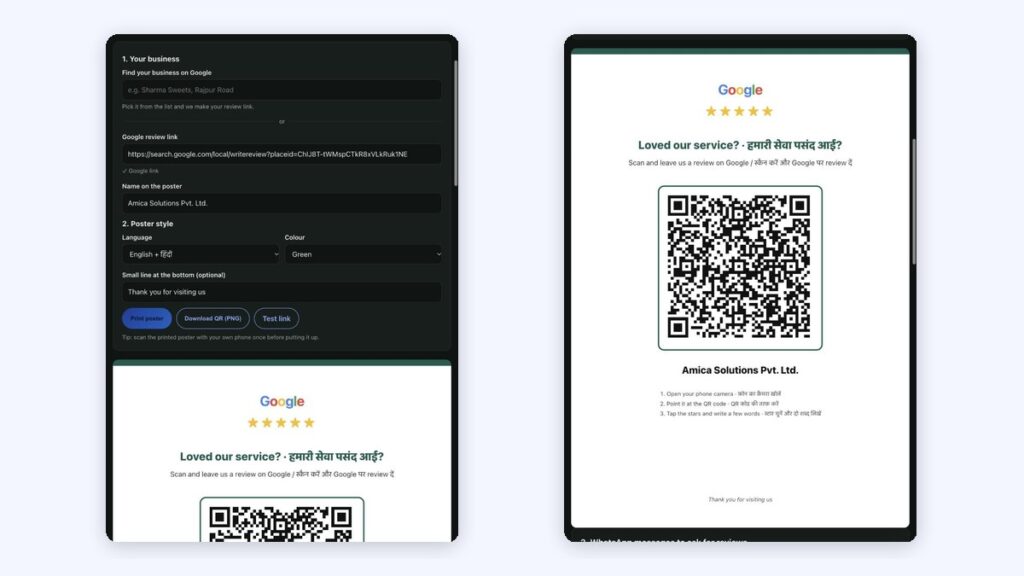
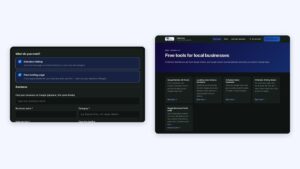
Free google review qr poster tool with the settings form and a finished english and hindi poster

The free poster tool: settings (left) and the finished poster for our own business (right). Screenshots: Amica Directory, 19 Nov 2026.

Most customers are willing to leave a review. They just forget. By evening the visit is over, the link is lost in a chat, and the moment has passed. A QR code at the counter catches them while they are still standing there, phone in hand, happy with what you did.

Key takeaways

  • Google lets you create a review QR code from your Business Profile on a computer.
  • A poster with a clear line and your name gets more scans than a bare code.
  • Keep the code at least 4 cm wide and test it before printing many.
  • Ask every customer; never offer rewards or ask only happy ones.
  • Our free poster tool makes the code, the A4 poster and WhatsApp messages.

What is a Google review QR code?

A Google review QR code is a QR image that opens your business’s “write a review” box on Google when a customer scans it. Google itself lets you create a review link or QR code from your Business Profile; its Help page says to go to your profile, choose Read reviews, then the Get more reviews share option (Google Business Profile Help). Google also notes that reviews QR codes can only be generated on a computer browser.

What Google gives you is a bare code. What most shops need is a poster: a clear line in the customer’s language, the stars, the code at a scannable size and your name. That is why we built a free poster maker into Amica Directory.

How do you make a review QR poster for free?

Making the poster takes about two minutes.

StepWhat you doTip
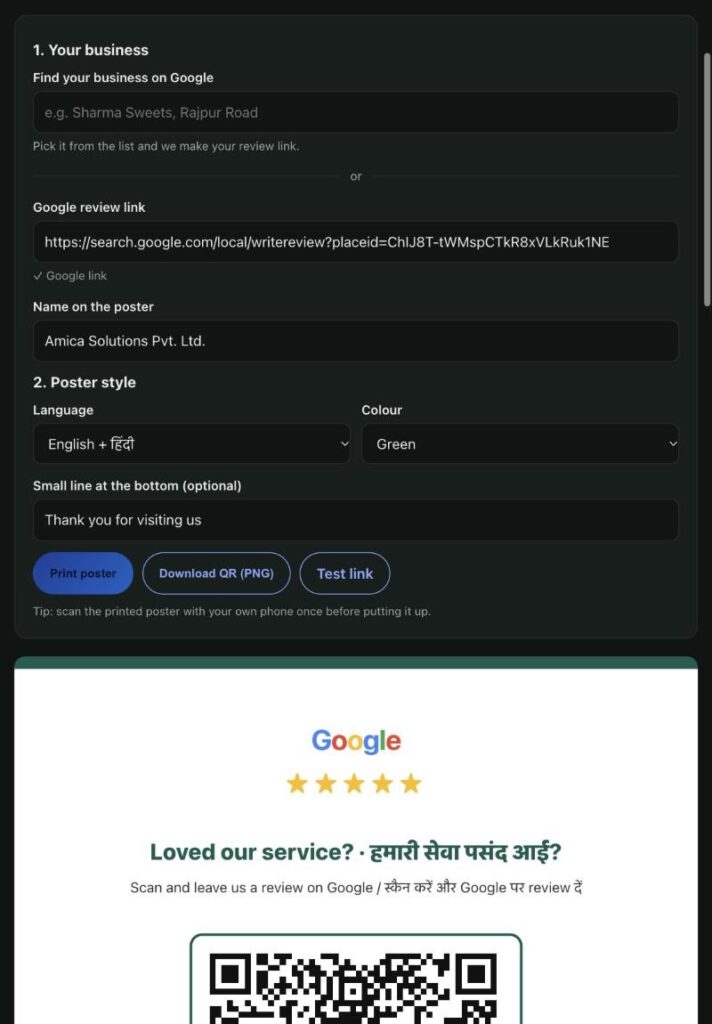
1Find your business on Google in the tool, or paste your Google review linkThe link must open your own review form
2Type the name to print on the posterUse your real signboard name
3Pick English, हिंदी or both, and one of 5 coloursBoth languages work well at a counter
4Add an optional line at the bottom“Thank you for visiting” is enough
5Print the A4 poster or download the QR as PNGScan the printout with your own phone before putting it up

Everything runs in your browser, so it is free and you can print as many copies as you like.

Review qr poster tool form with google review link, poster name, language and colour options

The poster settings: review link, name, language and colour. Screenshot: Amica Directory, 19 Nov 2026.

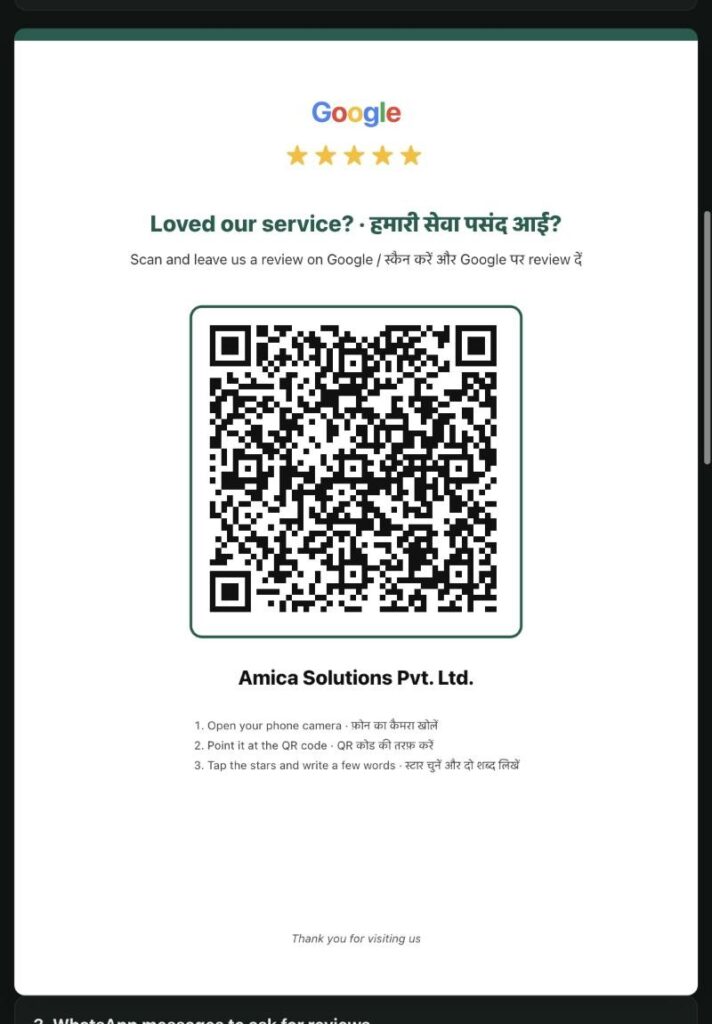
Google review qr code poster for amica solutions in english and hindi made with a free tool

A review QR poster made for our own business with the free tool. Screenshot: Amica Directory, 19 Nov 2026.

Where should you put the QR code?

Size and place matter more than design. The tool’s own guidance is to keep the QR code at least 4 cm wide and to test it with your phone first. Put it where the customer is happy and has a free hand: the billing counter, the waiting area, the table, the delivery bag or the invoice.

BusinessBest place for the QRWhen to point it out
Shop or showroomBilling counter, at eye levelWhile packing the item
Clinic or salonReception desk and waiting areaAfter the visit, at payment
Restaurant or cafeTable tent or bill folderWhen the bill is brought
Home servicesPrinted card left after the jobOnce the customer checks the work
Coaching instituteNotice board and receptionAfter results or a good class

What does Google allow when you ask for reviews?

Google allows asking every customer for an honest review. It does not allow rewards or picking only happy customers. Google’s policy says businesses may not “Offer incentives – such as payment, discounts, free goods and/or services” for reviews, and may not “selectively solicit positive reviews from customers” (Google Maps user contributed content policy). So the poster should say “please review us”, never “get 10% off for a 5-star review”.

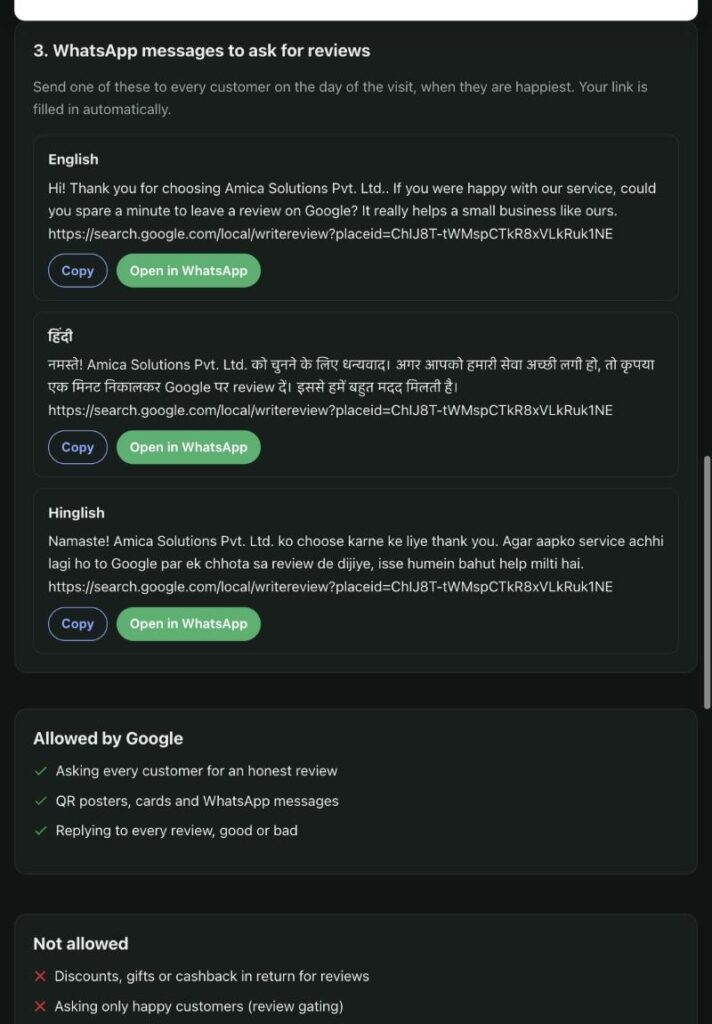
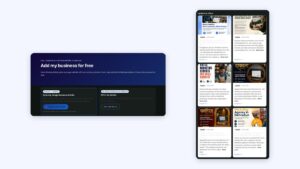
The tool also gives three ready WhatsApp messages, in English, Hindi and Hinglish, with your link filled in. Send one on the day of the visit; see WhatsApp messages to ask for a Google review.

Ready whatsapp messages in english, hindi and hinglish asking customers for a google review

Ready WhatsApp messages in English, Hindi and Hinglish, with the review link filled in. Screenshot: Amica Directory, 19 Nov 2026.

Make your poster now

Free tool: Google Review QR Poster

Make your review QR code and a printable English/Hindi poster in your browser. No sign-up, no cost.

Make my review QR posterAsk us on WhatsApp

Frequently asked questions

Is the Google review QR code generator free?

Yes. The poster and QR code are made in your browser on Amica Directory, and you can print or download them as often as you like.

Yes. Google lets you create a review link or QR code from your Business Profile on a computer browser: open your profile, choose Read reviews, then Get more reviews.

Keep the code at least 4 cm wide on paper, print on A4 for a counter or wall, and scan it with your own phone before putting it up.

No. Google’s policy does not allow discounts, gifts, cashback or any incentive in return for reviews. Reviews posted because of an incentive are removed.

No. Asking only happy customers is review gating, which Google does not allow. Ask every customer for an honest review.

Chat With Us on WhatsApp

Send us your question and we reply on WhatsApp.

Opens WhatsApp with your message to +91 94113 39575.

Recent Posts

Scroll to Top