How to Add LocalBusiness Schema in WordPress Without Breaking Your Site (2026)
By the Amica Solutions Team · Published 19 November 2026 · Google facts checked 19 November 2026 against Google’s own Help pages. Amica Solutions builds Amica Directory and these free tools, so the screenshots are from our own tools and our own listing.
To add LocalBusiness schema in WordPress, generate the JSON-LD code, then paste it into a header-code box, a Custom HTML block on your contact page, or fill your SEO plugin’s local business fields, but only one of these. Keep the details identical to your Google Business Profile and test with the Rich Results Test.
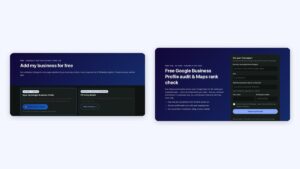
Generate the code (left); keep it matching your profile (right). Screenshots: Amica Directory, 19 Nov 2026.
WordPress makes adding schema easy, and also makes it easy to end up with two conflicting blocks: one from a plugin and one pasted by hand. Five minutes of care avoids that.
Key takeaways
- Generate the code with your exact profile details.
- Add it one way only.
- One block per location page.
- Watch for plugin duplicates.
- Test, then allow several days.
What do you need before adding schema?
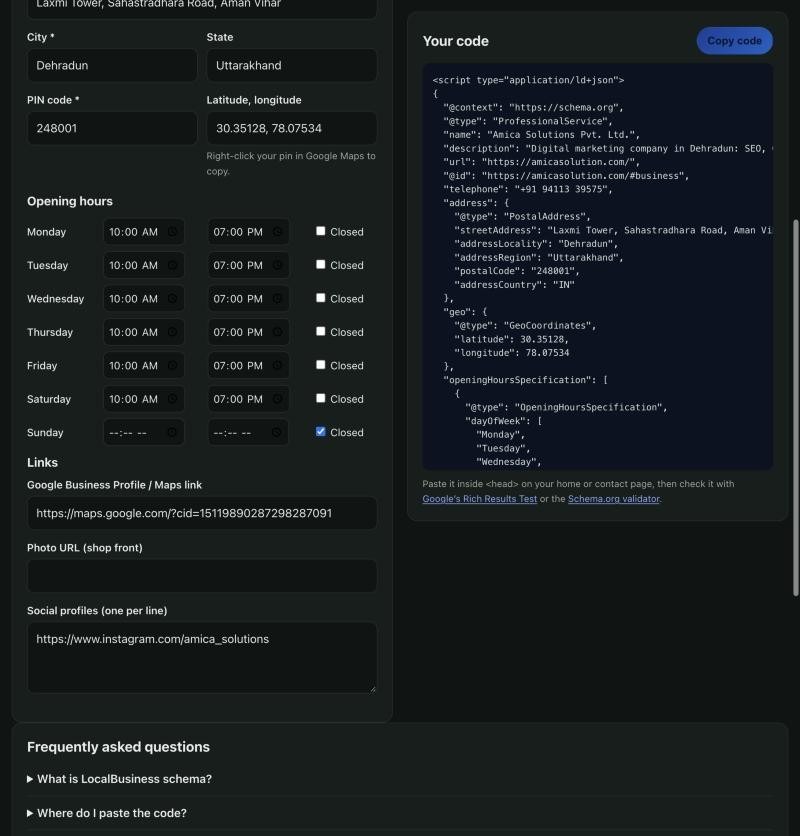
First, generate the code. Use the free LocalBusiness Schema Generator with the same name, address, phone and hours as your Google Business Profile. Google’s documentation shows the markup inside a <script type=”application/ld+json”> block and notes you can also use a CMS plugin (Google Search Central).
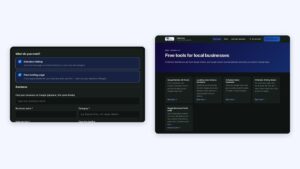
The schema generator filled in for our business, with the code on the right. Screenshot: Amica Directory, 19 Nov 2026.
Three ways to add schema in WordPress
Then add it in one of three ways.
| Method | How | Best when |
|---|---|---|
| Header code box | Paste the code into a header-scripts plugin or your theme’s custom code box, limited to the home or contact page | You want it site-wide or on one key page |
| HTML block on the page | In the block editor or Elementor, add a Custom HTML block on the contact page and paste the code | One location, one contact page |
| SEO plugin’s local settings | Fill the plugin’s local business fields instead of pasting code | Your SEO plugin already outputs Organization schema |
For several branches, Google says to define each location as its own LocalBusiness; put each block on that branch’s own page.
How do you avoid duplicate or wrong schema?
Avoid duplicates and mismatches. Many SEO plugins already output Organization or LocalBusiness data. Two blocks with different phone numbers or addresses confuse search engines.
| Problem | Fix |
|---|---|
| Plugin and pasted code both output LocalBusiness | Keep one; fill the plugin fields or disable its local schema |
| Address differs from Business Profile | Copy the exact address from your profile |
| Phone without country code | Use +91 and the full number, as Google recommends |
| Schema on a noindex page | Put it on an indexable page; check with URL Inspection |
| Hours not updated after a change | Update the schema when you change profile hours |
How do you test it?
Test. Run the page through Google’s Rich Results Test, fix critical errors, and check the live page with URL Inspection in Search Console. Google says to allow several days for crawling and indexing.
Generate your code
Free tool: LocalBusiness Schema Generator
Make the code first: a short form, 32 business types, grouped hours and a copy button.
Frequently asked questions
How do I add schema to WordPress without a plugin?
Paste the JSON-LD code into a Custom HTML block on your contact page, or into your theme’s header code box for that page.
Do I need a plugin for LocalBusiness schema?
No. A pasted JSON-LD block works. If your SEO plugin has local business fields, you can use those instead, but not both.
Which page should have LocalBusiness schema?
Your home or contact page for one location; each branch’s own page for multiple locations.
How do I check for duplicate schema?
Run the page through the Rich Results Test and look for more than one LocalBusiness or Organization item with different details.
Does Elementor support schema code?
Yes. Add an HTML widget on the page and paste the JSON-LD block.
Sources (checked 19 November 2026)