
MCQ Test Portal: Installation and First Setup
Install the plugin, enter your licence key and follow the setup checklist. Most institutes have their first test live the same day.
What do I need before installing?
| Need | Minimum |
|---|---|
| WordPress | 6.4 or newer |
| PHP | 8.1 or newer |
| Permalinks | Settings → Permalinks → Post name |
| Licence key | One key per website, from Amica Solutions |
| Server cron (recommended) | So auto-submit, PDFs and messages run on time |
No extra server software is needed for equations or PDFs. Equations are drawn in your browser while you import, and the PDF library is bundled.
How do I install the MCQ Test Portal?
- In WordPress go to Plugins → Add New → Upload Plugin, choose the zip file and click Install Now, then Activate.
- Go to Settings → Permalinks, choose Post name and save. This is needed for practice pages and the test player.
- Open MCQ Portal → Licence, paste your key and click Save and check.
- Open MCQ Portal → Dashboard and follow the setup checklist.
Updating later works the same way: upload the new zip and choose Replace current with uploaded. Your questions, tests and results are kept.
Which pages does the plugin create?
Activation creates three pages. Add them to your menu:
| Page | Shortcode | What it shows |
|---|---|---|
| My Tests | | Student login, progress, attempts and purchases |
| Test Series | | All free, paid and practice series |
| Privacy request | | The “delete my data” form |
Other shortcodes you can place anywhere:
2 tests
- Free करंट अफेयर्स मासिक टेस्ट अक्टूबर 2026 / Current Affairs Monthly Test October 2026 10 questions · 10 marks · 10 minutes Current Affairs Monthly Tests Start test
- Free No login needed कक्षा 12 गणित — अभ्यास टेस्ट 1 / Class 12 Maths — Practice Test 1 10 questions · 40 marks · 20 minutes Start test
0 tests
Tests will be added soon.
: one test inside any page or blog post.Latest current affairs
- 10 November 2026 करंट अफेयर्स 10 नवंबर 2026 / Current Affairs 10 November 2026 4 questions Practice
- 1 November 2026 करंट अफेयर्स 1 नवंबर 2026 / Current Affairs 1 November 2026 3 articles Read
- 28 October 2026 करंट अफेयर्स 28 अक्टूबर 2026 / Current Affairs 28 October 2026 10 questions Practice
Current affairs by exam
Current affairs by state
Current affairs calendar
Monthly current affairs
- करंट अफेयर्स नवंबर 2026 / Current Affairs November 2026 4 questions · 3 articles Practice
- करंट अफेयर्स अक्टूबर 2026 / Current Affairs October 2026 10 questions Practice Monthly test
Yearly current affairs
- करंट अफेयर्स 2026 / Current Affairs 2026 14 questions · 3 articles Practice
Current affairs by topic
National 2 International 2 Economy 2 Sports 2 Uttarakhand 2 Science & Tech 2 Schemes 2 Appointments 1 Awards & Honours 1 Defence 1
: the Hindi / English menu.
Which settings should I check first?
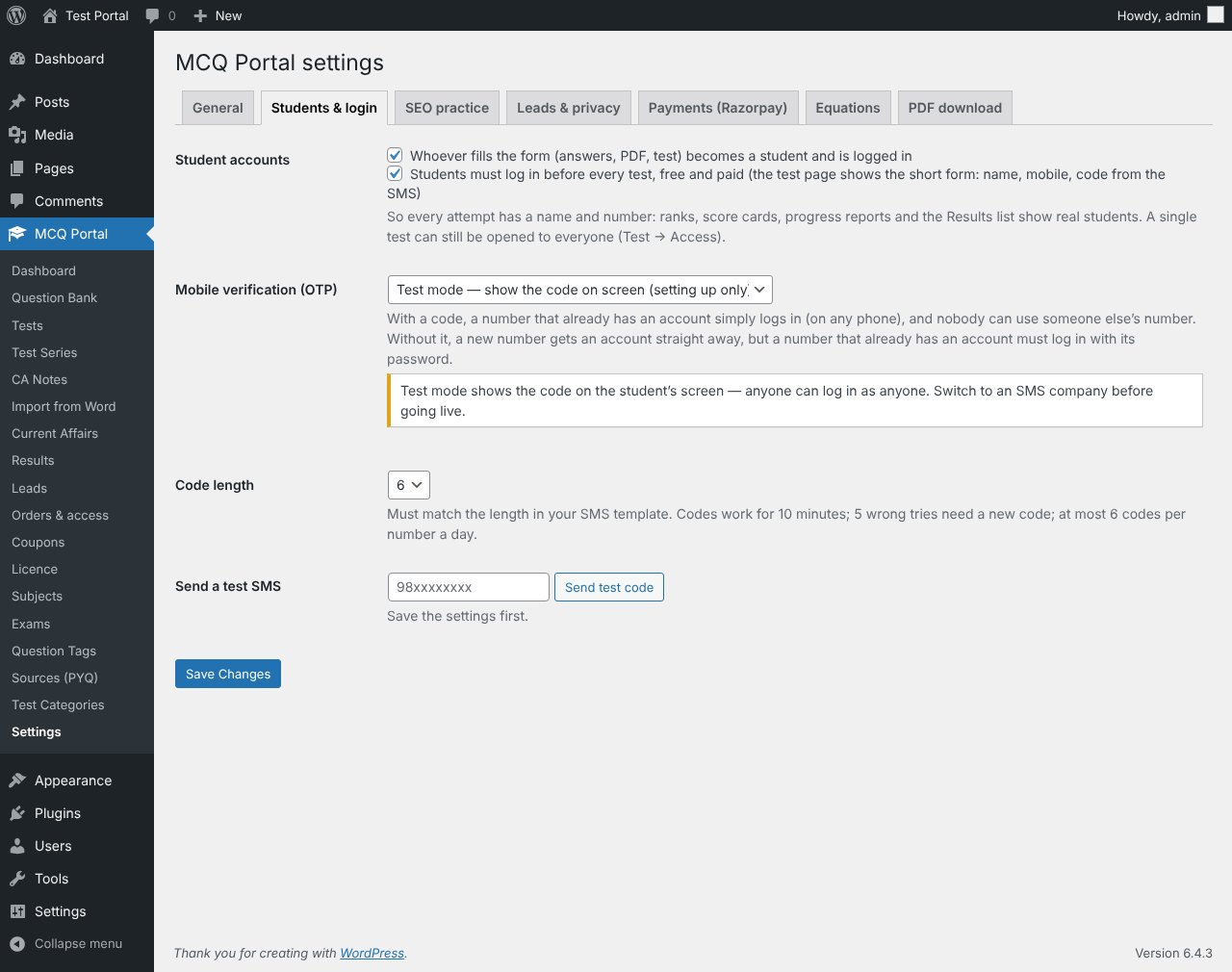
Open MCQ Portal → Settings. The tabs are:
- General: student menu language (English by default; students can switch to हिंदी), font, colours and default marks.
- Students & login: student accounts and mobile verification (OTP). See the students guide.
- Practice & SEO: practice page layout, answers and the lead form.
- Leads & privacy: your Privacy Policy page and the consent text.
- Payments (Razorpay): Key ID, Key Secret and the webhook.
- Equations and PDF download: how equations and PDFs look.
- WhatsApp messages: results, daily current affairs and renewals.
What does the admin menu contain?
Under MCQ Portal you will find: Dashboard, Question Bank, Tests, Test Series, CA Notes, Import from Word, Current Affairs, Results, Leads, Students, Orders & access, Coupons, Message log, Licence, and the lists for Subjects, Exams, States, Question Tags, Sources (PYQ) and Test Categories.